SharePoint and OneDrive are strong platforms for storing, sharing, and collaborating on documents. But opening a file is not the same job as administering thousands of them.
An administrator reorganizing departmental content may need to browse several sites, compare two libraries, move a folder to a new destination, upload a corrected batch, and confirm that every operation completed. A Microsoft 365 consultant may repeat that work across multiple client tenants. These are sustained file-management tasks, not occasional document interactions.
That distinction explains why many experienced administrators still want a SharePoint desktop file manager. The need is not to turn SharePoint into a local disk. It is to create a clearer workspace for operating on cloud content across sites and libraries.
SharePoint collaboration is not the same as file administration
Most people use SharePoint and OneDrive one document at a time. They open a link, edit a file, share it, or work inside Teams. The native experience is well suited to that pattern.
Administrative file work has a different shape. The operator often needs to maintain source and destination context, select many items, repeat an action, and monitor work that continues beyond a single click. Common examples include:
- moving project folders from an intake site to an active-work library
- copying approved templates into several departmental locations
- downloading a large content set for an authorized offline task
- uploading a prepared folder structure
- reorganizing inherited libraries after an ownership change
- finding files across folders, libraries, or sites before deciding what to do
- restoring a batch of accidentally deleted items
The hard part is rarely one copy or move command. It is maintaining context and confidence across the whole operation: where the content started, where it is going, what is selected, what is still running, and whether anything failed.
Why the familiar options leave an operational gap
Microsoft 365 administrators already have several good tools. Each one solves a real problem, but none automatically becomes the ideal workspace for routine cross-library file administration.
The SharePoint browser UI
The browser is appropriate for everyday content use and many simple operations. It also benefits from being the interface users already know.
Sustained administrative work becomes less comfortable when the task spans multiple sites or libraries. Source and destination may live in different tabs. Each change of location adds navigation, and it becomes harder to keep both sides of an operation visible. Browser feedback that is adequate for a quick action can also feel fragmented when several larger operations are in progress.
OneDrive sync
OneDrive sync is valuable for normal user access, offline work, and keeping selected cloud content available through the operating system. That does not mean every administrative task should become a synchronization project.
Sync introduces a local replica into a job that may only require a direct cloud-to-cloud move or copy. Administrators must then reason about sync scope, local disk use, synchronization state, and whether the local workspace is temporary or permanent. For repeated work across several libraries, that can be more setup than the task warrants.
PowerShell and Microsoft Graph scripts
Scripts are the right answer when a process must be automated, repeated consistently at scale, or integrated into a larger workflow. They offer flexibility that a graphical utility cannot and should not try to replace.
They also require engineering discipline. Authentication, paging, throttling, conflict behavior, retries, logging, validation, and maintenance all matter. Writing and reviewing that machinery may be disproportionate when the immediate job is simply to move a set of folders between two known locations.
Migration and governance platforms
Migration suites and governance platforms earn their place in formal tenant moves, restructuring programs, policy enforcement, assessment, and enterprise transformation. Those projects need planning, mapping, reporting, and controls that go well beyond file handling.
Routine operational work sits below that threshold. An administrator should not need to frame a library cleanup as a migration engagement or adopt a broader platform just to get a better copy-and-move workflow.
What a better desktop file manager should provide
A useful SharePoint explorer alternative should respect the fact that SharePoint is a cloud content system. It should provide the familiarity of a desktop file manager while preserving the site, library, folder, permission, and job context that local file tools do not understand.
In practice, that means a few things.
Sites and libraries should be first-class locations. Operators need to discover and navigate the Microsoft 365 locations available to their signed-in account without manually assembling URLs for every task.
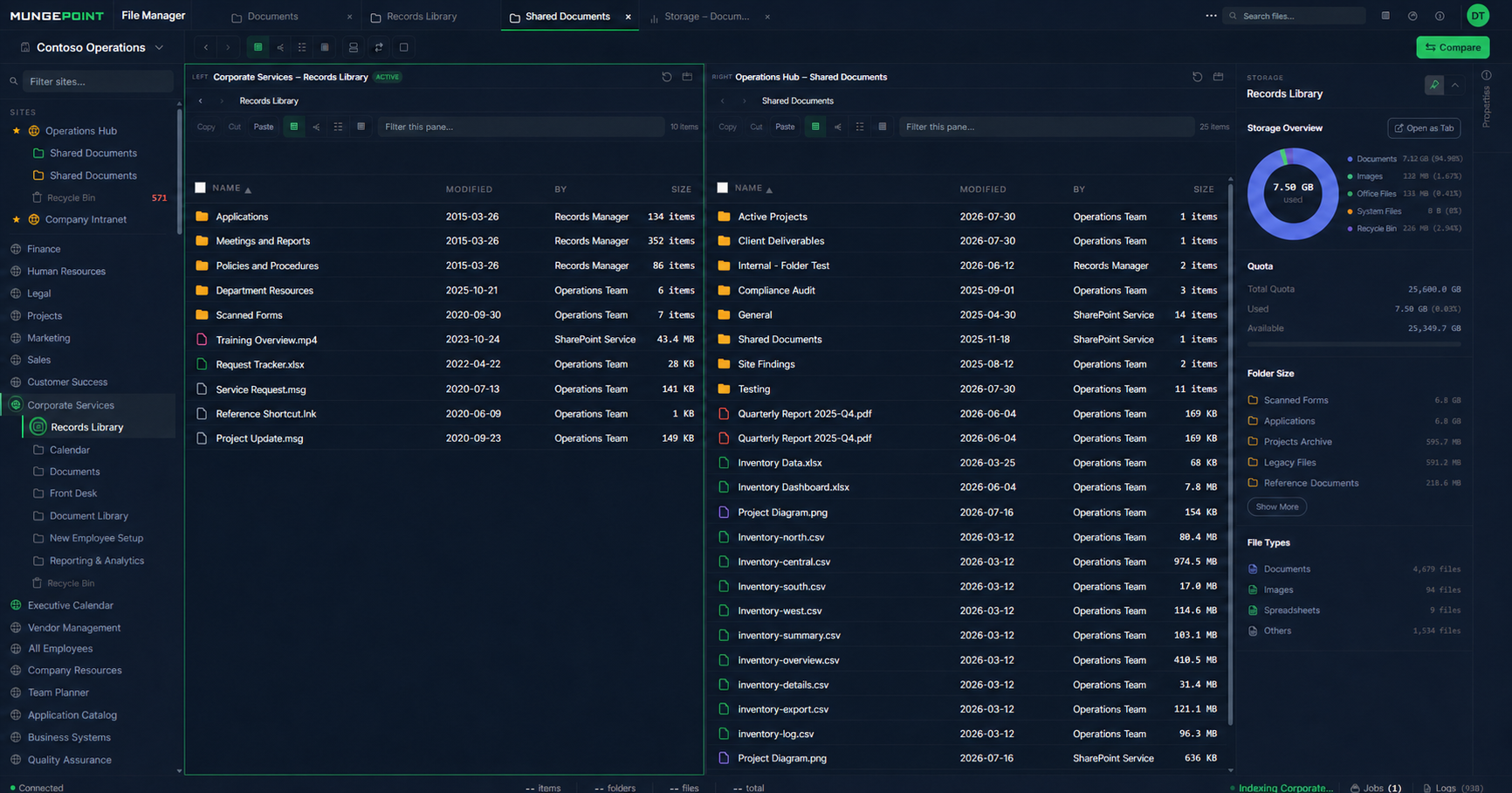
Source and destination should remain visible. Tabs help an administrator keep several libraries open. A split-pane view is even more useful for transfer work because both sides can stay on screen while the operator compares paths, selects content, and stages a copy or move.
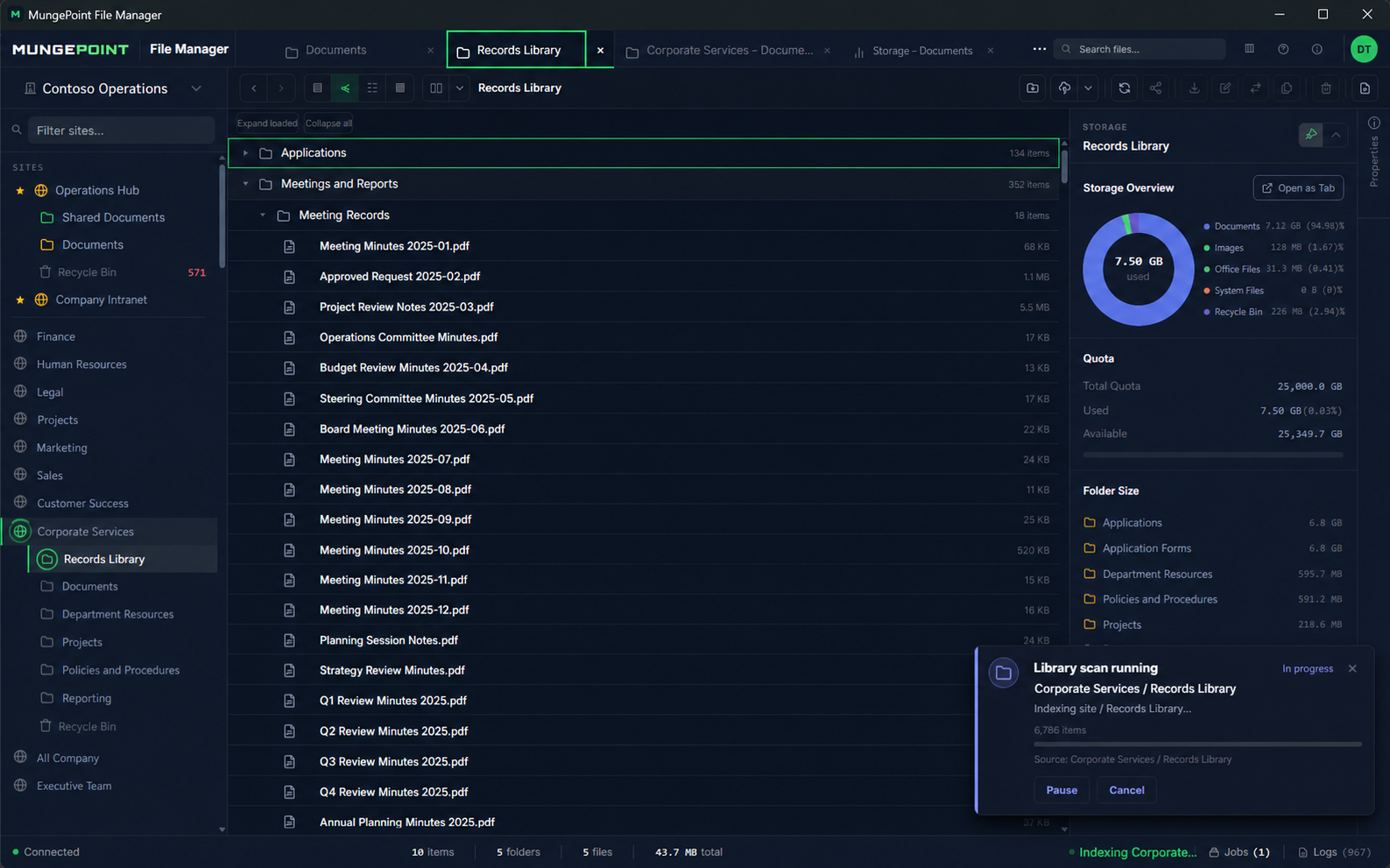
Bulk actions need operational feedback. Multi-select is only half the requirement. Uploads, downloads, copies, moves, and restores may take time. A job queue, progress state, retry behavior, history, and logs turn an action into something the operator can verify.
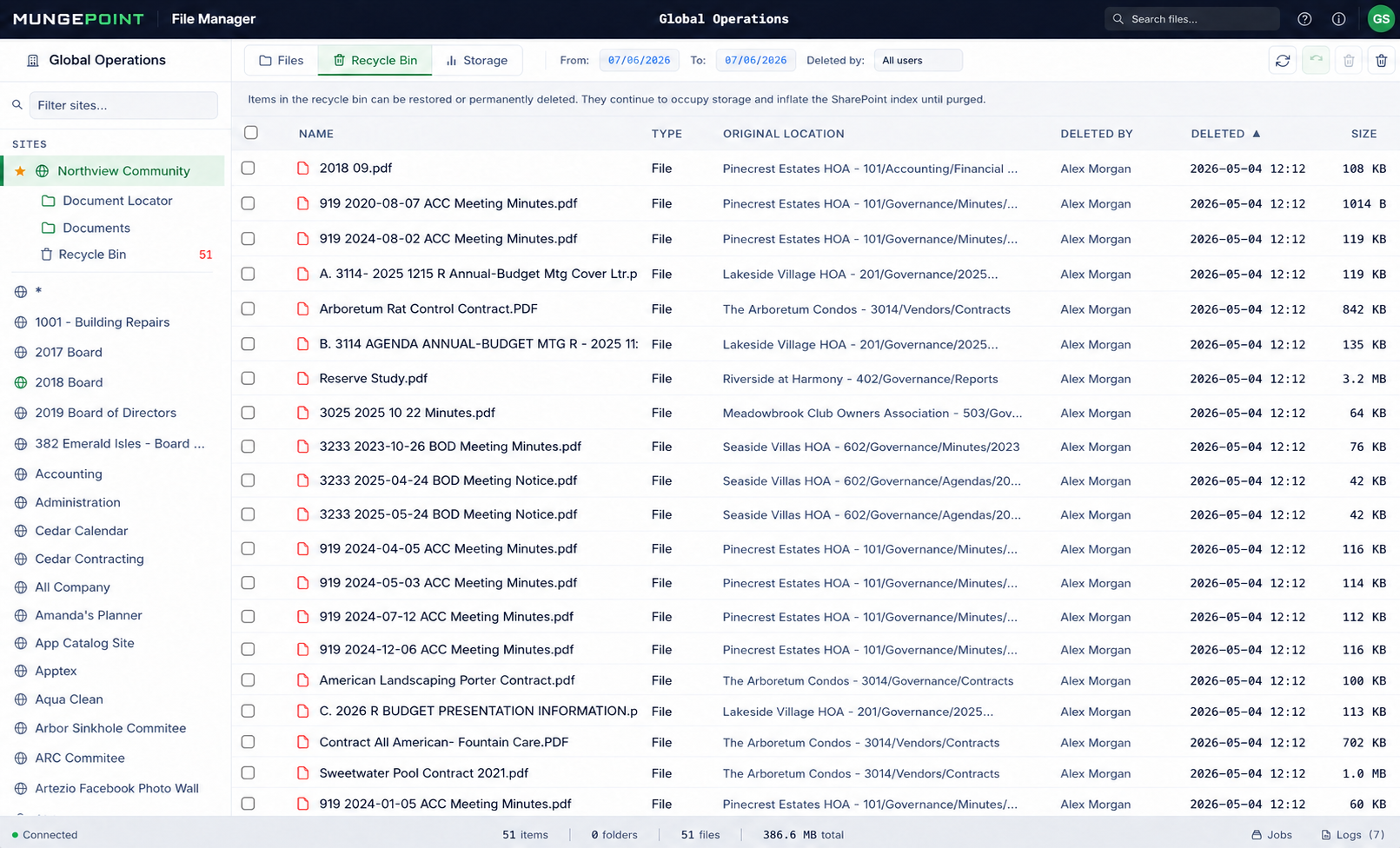
Search and inspection should happen before action. File work is safer when an operator can find content across an appropriate scope, inspect names, locations, dates, sizes, and other available metadata, then decide what belongs in the batch.
The tool should stay focused. A file manager does not need to become a governance program, a migration platform, or an automation framework. Its value comes from reducing friction in the operational middle layer.
Where a purpose-built utility creates value
Consider a departmental reorganization. Finance content is spread between an old team site, a shared services library, and a project archive. The administrator needs to place active material in the new structure without losing track of the original locations.
With a desktop workspace, the administrator can keep the relevant libraries open as tabs, place source and destination side by side, and move through folders without repeatedly rebuilding context. Selected files and folders can be copied or moved across libraries and sites. Longer transfers can continue as jobs while the operator reviews another location.
The same pattern applies to consulting work. A consultant can sign in with the account they hold in a client tenant, work within that account’s existing permissions, and switch tenants when the engagement changes. There is no need to install a server-side agent or create a separate MungePoint account simply to use the utility.
Cleanup and recovery benefit from the same visibility. Storage views help identify where content volume is concentrated. Search narrows the working set. Bulk recycle-bin restore avoids treating a multi-item recovery as a series of isolated clicks. None of these capabilities replaces a retention, records-management, or governance process. They make the file-handling portion of the job easier to see and control.
How MungePoint File Manager approaches the problem
MungePoint File Manager is a free Windows desktop utility built for practical SharePoint and OneDrive file operations. It auto-detects accessible sites and document libraries, provides Explorer-style navigation, and supports search, upload, download, copy, move, delete, and restore workflows.
Its tabbed workspace can keep multiple locations open, and its split-pane mode puts source and destination in the same view. Transfers can run within a library, between libraries, or between sites. Bulk operations are handled through visible jobs with progress, queueing, retry, history, and local logs rather than disappearing into a single browser notification.
The application is local-first. It runs on the user’s desktop and connects directly to Microsoft 365 through Microsoft Graph using the user’s Entra ID credentials and delegated permissions. File listings, job history, and logs are kept in a local SQLite database. MungePoint does not require a hosted MungePoint workspace or place a relay in the file-operation path. Existing Microsoft 365 permissions still determine what the signed-in user can see and change.
That architecture is not a substitute for evaluating an organization’s security, consent, and device-management requirements. It does provide a direct, administrator-controlled model for a tool whose job is to operate on Microsoft 365 content.
File Manager is intentionally narrower than a migration or governance suite. It is also more immediately usable than a custom script for an operator who needs to browse, compare, move, copy, upload, download, or restore content today.
A focused tool for the work between everyday access and major projects
The gap in Microsoft 365 file operations is not caused by a lack of capable tools. It exists because everyday document interfaces, synchronization clients, scripting environments, and enterprise platforms serve different jobs.
Administrators and consultants still need a practical workspace for the work in between: sustained file administration across SharePoint and OneDrive locations. A better desktop file manager keeps cloud context visible, makes bulk operations easier to direct, and provides enough job feedback to verify the result.
Download MungePoint File Manager
Browse SharePoint and OneDrive more naturally, keep source and destination libraries in view, and manage bulk copy, move, upload, download, and restore operations with clearer progress visibility.
Download MungePoint File Manager free for Windows. No MungePoint account is required.